 by
by Introduction:-
Think of an Operating System (OS) as the master conductor of a massive orchestra. The musicians are your computer’s hardware (the processor, memory, storage), and the sheet music is your software (apps, games, browsers). Without the conductor, you just have a room full of brilliant tools that have no idea how to work together.
Here is your comprehensive guide to understanding what an operating system is, what it does, and how it keeps our digital world running.
What Exactly is an Operating System?
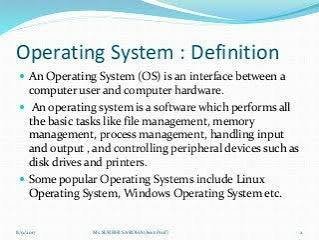
An Operating System is a core piece of software that sits directly between the computer hardware and the user. It acts as an intermediary, translating your clicks, taps, and commands into instructions that the machine’s physical circuits can actually understand.
Without an OS, you would have to write custom code just to tell your computer how to save a file or display text on the screen every single time you used it.
Core Functions: What Does an OS Actually Do?
An OS wears many hats. Here are the primary jobs it manages behind the scenes:
1. Process Management
Your computer is constantly multitasking. The OS decides which program gets the CPU’s (Central Processing Unit) attention, for how long, and in what order. It ensures that your music doesn’t stutter just because you opened a massive spreadsheet.
2. Memory Management
Programs need RAM (Random Access Memory) to run. The OS dynamically allocates memory to active programs and reclaims it when you close them. It also prevents programs from accidentally overwriting each other’s data
3. File System Management
Ever wonder how your computer keeps track of your photos, documents, and folders? The OS organizes these into a structured file system, managing how data is stored, retrieved, and protected on your hard drive or SSD.
4. Device Management
When you plug in a mouse, a printer, or a USB drive, your computer needs to know how to talk to it. The OS uses special software called device drivers to communicate with all hardware peripherals.
5. User Interface (UI)
This is the part you actually see and interact with. The OS provides the environment for you to work in, which generally falls into two categories:
- GUI (Graphical User Interface): Icons, windows, and menus you click on (like Windows or macOS).
- CLI (Command Line Interface): Text-based terminals where you type commands (like Linux Terminal).
Major Types of Operating Systems
Operating systems are tailored to the devices they power. Here are the most common types:
| OS Category | Examples | Primary Use Case |
| Desktop / Laptop | Microsoft Windows, macOS, Linux | Personal computing, gaming, professional work. |
| Mobile | Android, iOS | Smartphones, tablets, smartwatches. |
| Server | Linux (Ubuntu, RedHat), Windows Server | Powering websites, databases, and cloud infrastructure. |
| Embedded Systems | RTOS (Real-Time OS), custom firmware | Found in cars, smart TVs, traffic lights, and microwaves. |
What is an operating system?
How an OS Starts: The Boot Process
When you press the power button on your computer, a sequence of events triggers to bring the OS to life:
- POST (Power-On Self-Test): The computer’s firmware (BIOS or UEFI) checks the hardware to ensure everything is working.
- Bootloader: The firmware locates the bootloader program on your storage drive.
- Loading the Kernel: The bootloader loads the Kernel (the absolute core of the OS) into the computer’s RAM.
- Initialization: The kernel initializes drivers, starts background services, and launches the user interface, bringing you to your login screen.
Which specific operating system are you currently using, or is there a particular feature (like security or multitasking) you want to dive deeper into?
Let’s dive a bit deeper into the “under-the-hood” concepts that make an operating system truly powerful. To really understand an OS, we need to look at its core brain, how it handles multitasking, and how it protects your data.
1. The Kernel: The Heart of the OS
If the OS is the conductor, the Kernel is the actual brain. It is the first part of the operating system to load into memory when you turn on your device, and it stays there until you shut it down.
The kernel has absolute control over everything. Because it is so critical, the OS splits your computer’s memory into two distinct zones:
- Kernel Space: A highly protected area reserved exclusively for the kernel, core drivers, and critical operations. If something crashes here, you get the infamous “Blue Screen of Death” (Windows) or a Kernel Panic (macOS/Linux).
- User Space: The safer, restricted area where your regular apps (like Chrome, Spotify, or games) run. If Chrome crashes, it only crashes in the user space—the whole computer doesn’t go down.
2. Threads and Processes: True Multitasking
When you look at your Task Manager or Activity Monitor, you see dozens of things running at once. How does the OS manage this without getting overwhelmed?
- Process: This is an entire running program. For example, opening your web browser creates a process. It gets its own isolated memory address from the OS.
- Thread: A thread is a smaller, lightweight unit inside a process. For example, within your browser process, one thread might handle downloading a file, another thread renders the webpage text, and a third thread plays an audio clip.
The OS uses a Scheduler to rapidly switch between these threads thousands of times per second. It happens so fast that to human eyes, it looks like everything is happening at the exact same time
3. Virtual Memory: The Illusion of Infinite Space
Have you ever wondered how you can open a 20 GB video editing project on a computer that only has 8 GB of RAM? The OS uses a clever trick called Virtual Memory.
When your actual physical RAM fills up, the OS temporarily borrows a piece of your hard drive or SSD (called a page file or swap space) and pretends it is RAM.
- It moves inactive apps (like a browser tab you haven’t clicked on in an hour) out of the fast RAM and onto the slower hard drive.
- The moment you click back onto that tab, the OS quickly swaps it back into the RAM.
Why this matters: This is why your computer dramatically slows down when you open too many things at once. The OS is spending all its time moving data back and forth between the RAM and the hard drive—a state called thrashing.
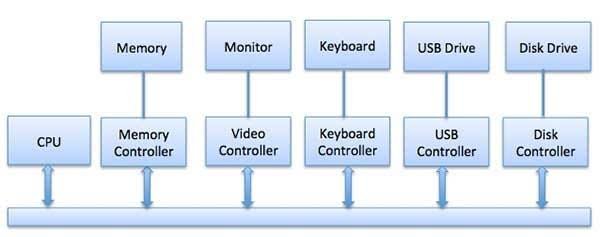
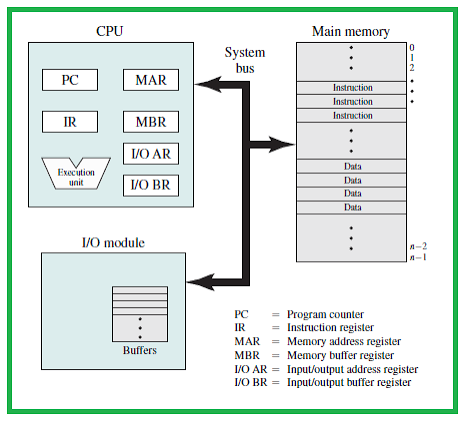
“To understand how the OS interacts with the physical components of a machine, it helps to know the basics of [computer organization and architecture]. This structural knowledge makes it easier to see how the system manages processing units.”
4. System Calls: The Security Guard
For security reasons, regular applications are never allowed to talk directly to your hardware. If a game wants to save your progress to the hard drive, or if Zoom wants to use your camera, they cannot just grab control of those components.
Instead, the app must politely ask the OS for permission using a System Call.
[ Your Application ]
       │
       ▼ (Asks permission via a "System Call")
[ Operating System / Kernel ]
       │
       ▼ (Verifies safety and passes command)
[ Hardware (Camera, Storage, etc.) ]
This prevents malicious software or poorly written code from destroying your hardware or stealing your files without you knowing.
To learn more about the technical evolution of software, you can check out the official Microsoft Documentation on Operating Systems.